Chapter 6: Look and feel
Your sale page does not have to look like everyone else's. The Look and Feel tool changes colors, backgrounds and shape, either for one listing or as the default for your whole portfolio, with a live preview as you go.
Where it is
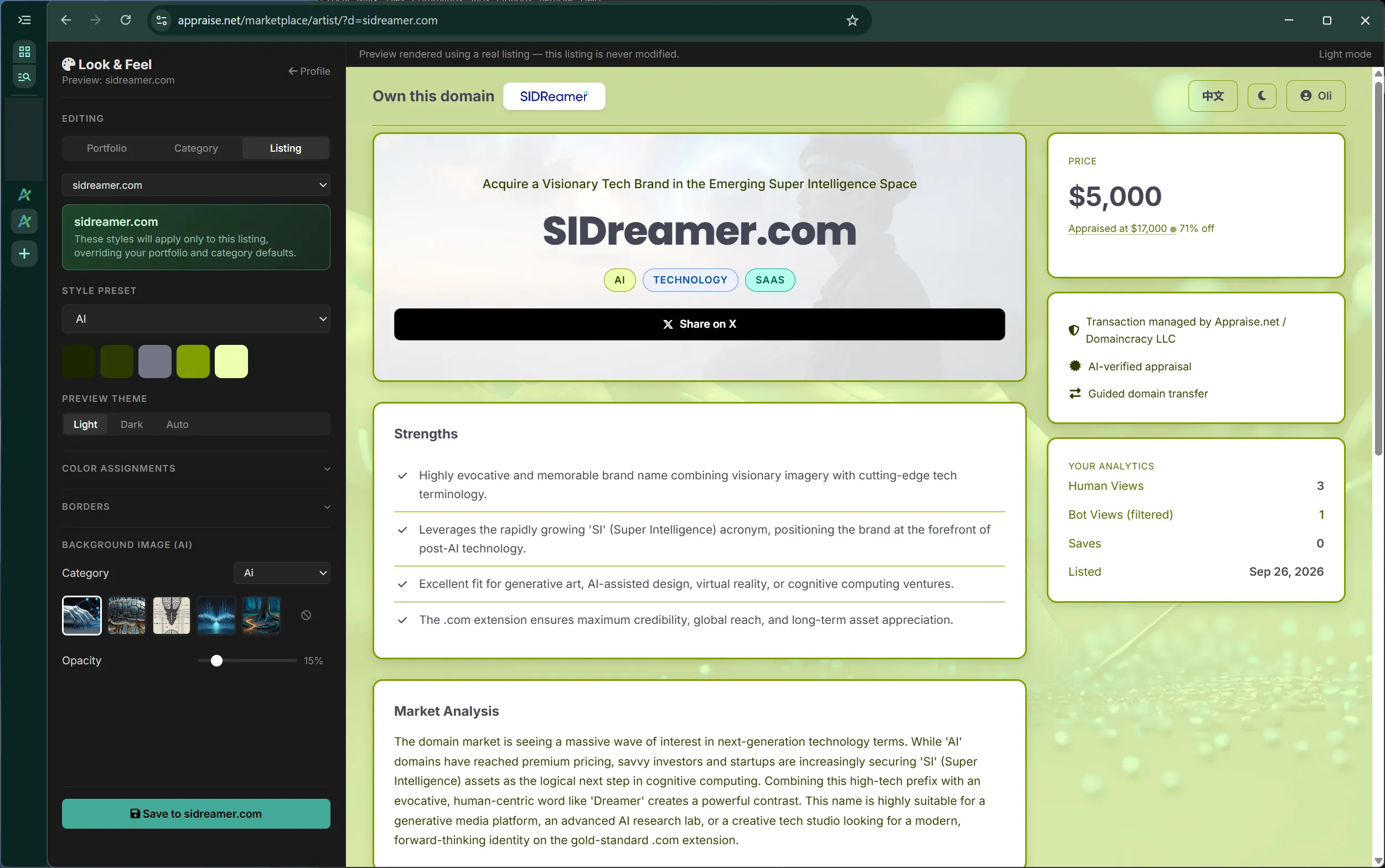
Open it from the seller dashboard or from any listing's edit page. The left side is the controls; the right side is your actual sale page, updating as you change things.
What you can change
- Style preset. Start from one of the ready-made palettes. Each sets a coordinated set of colors for light and dark mode.
- Color assignments. Assign the palette's colors to the accent (buttons and highlights), text and surfaces. The payment buttons pick up your accent automatically, including their hover state.
- Background image. Choose an image by category and set its opacity so text stays readable.
- Borders, radius, shadow and width. The shape of the price card and content blocks.
- Preview theme. Check the page in light, dark and auto before saving; buyers see whichever their device prefers.
Listing, category or portfolio
The Editing switch at the top chooses the scope of what you are styling: this one listing, every listing in a category, or your portfolio defaults. The most specific style wins: a listing's own style beats its category's, which beats the portfolio default. So a hundred names can share one look, the finance names can carry their own, and a few premium ones can be styled individually.
Templates
Two page templates exist, a standard and an enhanced layout with more room for the analysis. Both respect your colors and background.
← Chapter 5: Listing types and the lease-to-own add-on · Seller Guide contents · Chapter 7: Pricing, minimum offers and reading interest →