System Status: Checking...
Core:
SQL
NoSQL
RT
Batch
Analysis:
Brand
Camel
Cat
Clarity
Avail
Common
Mem
Rhyme
SEO
SEO-
Sent
Syll
TLD
Tone
TM
Whois
Rank

Browser Extension

Back to all topics

What is the Appraise.net browser extension?

Appraise domains where you find them. The Appraise.net extension for Chrome, Edge and other Chromium browsers lets you right-click any domain name, or pull every visible domain off an auction or marketplace page, and get Appraise.net valuations in a side panel without leaving the page.
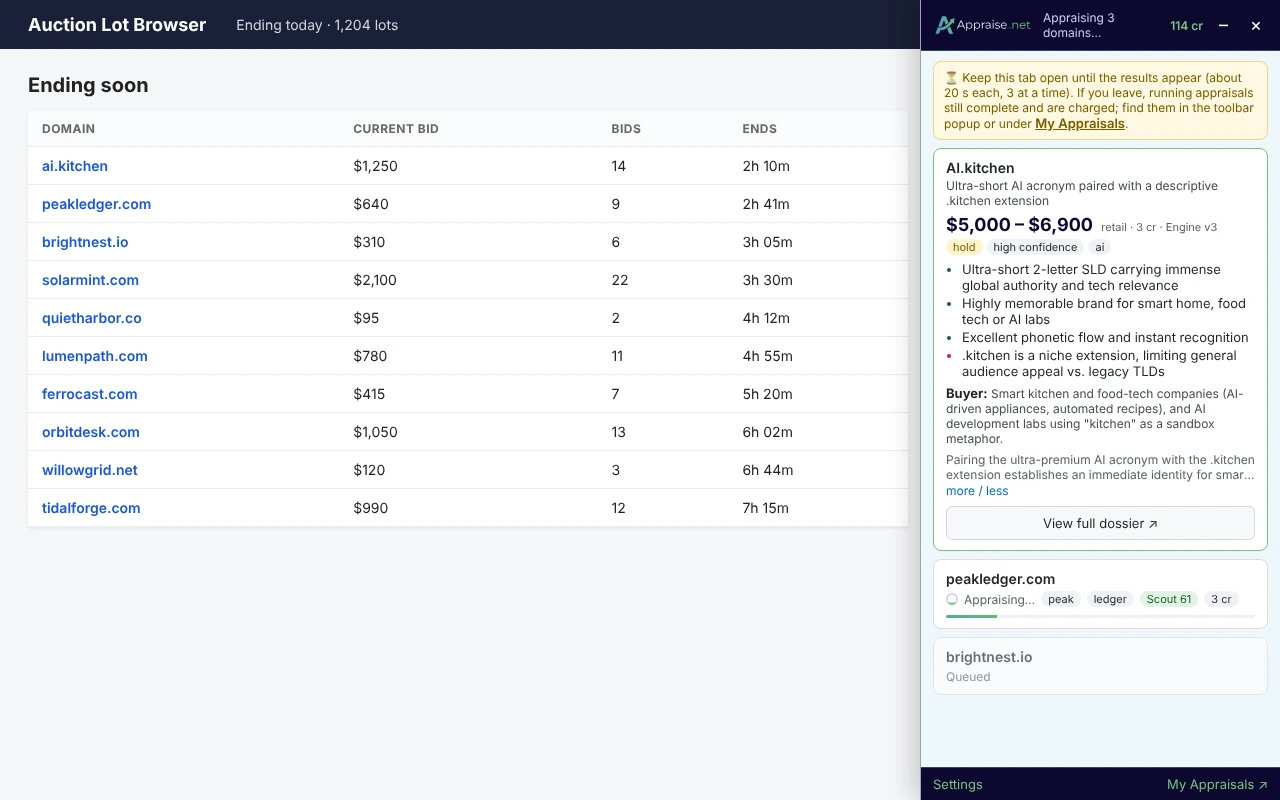
The side panel open on an auction page showing a finished appraisal card (AI.kitchen, $5,000 - $6,900, Engine v3)

Who can use it

Any Appraise.net account holder with credits. The extension uses the same credits and the same engine as the website; appraisals you request through it appear under My Appraisals exactly as if you had made them on the site.

Supported browsers

The extension works in Chrome, Edge, Brave, Opera, Vivaldi and Arc (version 116 or newer). Firefox and Safari are not supported yet.

Ready to try it? See how to install the extension and sign in.

5 views 0 helpful
How do I install the extension and sign in?

Install

  1. Open the extension's page on the Chrome Web Store. Edge users install from the same Chrome Web Store link.
  2. Click Add to Chrome (or Get in Edge) and confirm.
  3. Pin the extension: click the puzzle-piece icon in the toolbar and the pin next to Appraise.net.

The extension runs in Chrome, Edge, Brave, Opera, Vivaldi and Arc (version 116 or newer). Firefox and Safari are not supported yet.

Sign in

The extension uses your existing Appraise.net login. Sign in at appraise.net/login in the same browser (two-factor and passkeys work as usual), and you are done; there is nothing to configure.

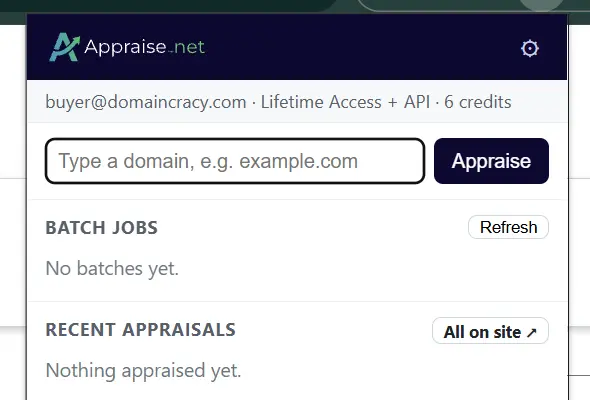
To check, click the toolbar icon: the popup shows your email, plan and credit balance.

The toolbar popup showing the account line, the quick-appraise box, Batch jobs and Recent appraisals

If you prefer not to rely on the browser session, API-plan subscribers can paste an API key instead: toolbar icon → gear icon (⚙) → Authentication → API key, then paste key:secret from the API section of your profile.

Related

6 views 0 helpful

How do I appraise a single domain from any web page?

  1. Highlight a domain name on any page.
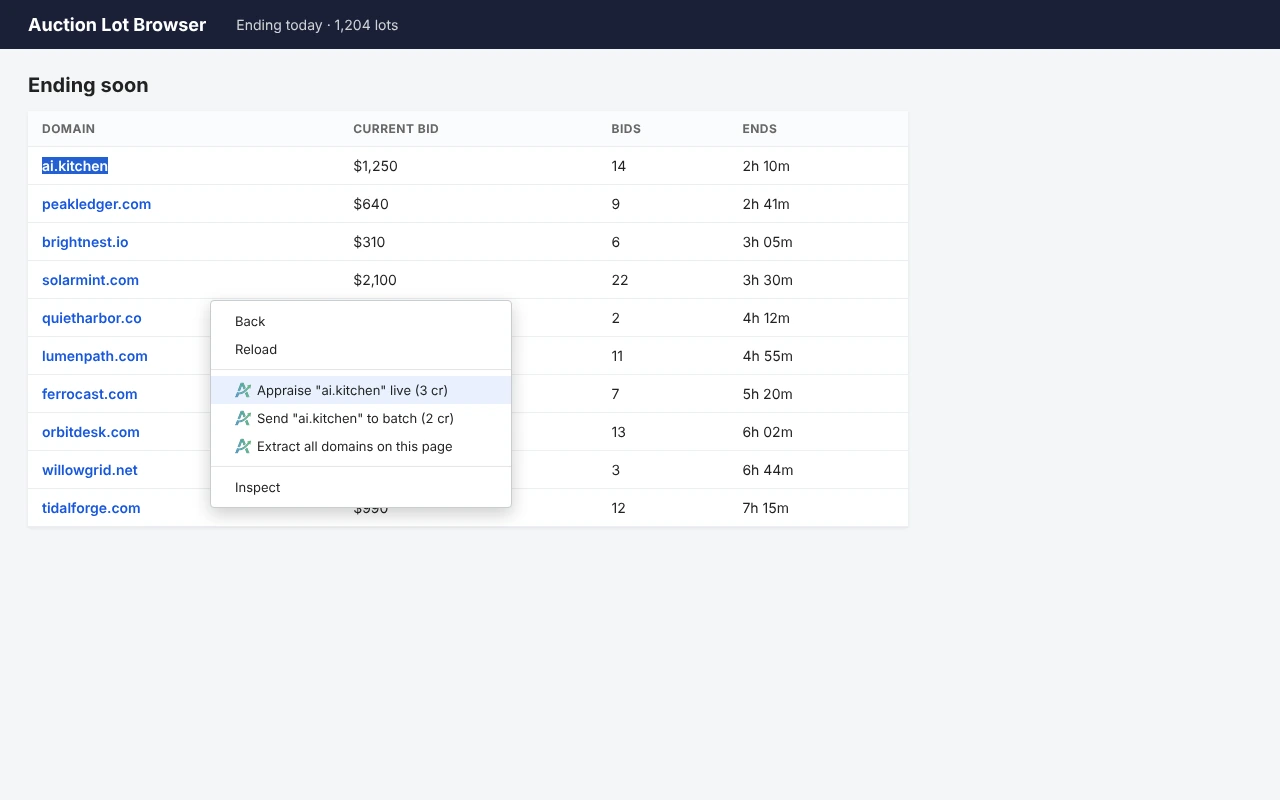
  2. Right-click and choose Appraise "…" live (3 cr) for a real-time result, or Send "…" to batch (2 cr) to queue it.
  3. The side panel opens on the right and shows the result.
A highlighted domain with the right-click menu open showing the two Appraise items and "Extract all domains on this page"

You can also type a domain into the toolbar popup and press Enter.

Not sure whether to pick live or batch? See Live or batch: which should I pick and what does each cost? Domains that already have a current appraisal cost less, and the panel shows the cost before anything is charged.

To appraise many names at once, see How do I appraise every domain on a page?

7 views 0 helpful

How do I appraise every domain on a page?

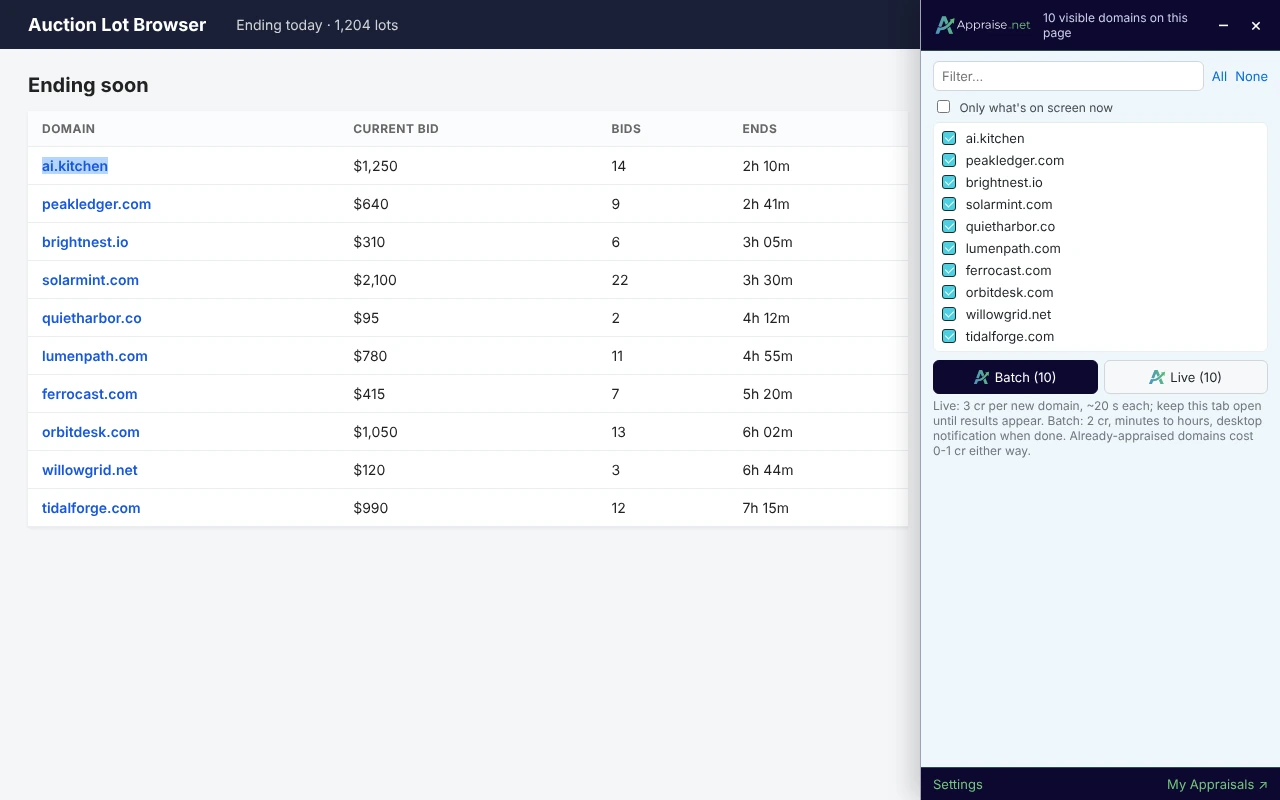
  1. Right-click anywhere on the page and choose Extract all domains on this page.
  2. The panel lists every domain that is actually visible on the page, in page order. Decoy domains hidden in the page code by some sites are ignored, so the list matches what you see.
  3. Use the filter box, All / None, or tick Only what's on screen now to limit the list to the part of the page you are looking at.
  4. Click Batch (N) or Live (N). N is the number of ticked domains.
The extract checklist with several domains ticked, the filter box, the "Only what's on screen now" option and the Batch / Live buttons

Before you click, the panel shows what the request will cost. Names that already have a current appraisal are cheaper or free; see Live or batch: which should I pick and what does each cost?

For what happens next, see What happens after I submit live or batch appraisals? If a domain you can see is missing from the list, see Troubleshooting the extension.

6 views 0 helpful

Live or batch: which should I pick and what does each cost?

The extension offers two ways to run an appraisal. Both use the same engine and the same credits as the website; they differ in speed, price and where you wait.

LiveBatch
Cost per new domain3 credits2 credits
TimeAbout 20 seconds each, four at a timeMinutes to hours, runs on our servers
Where you waitKeep the tab open; results stream into the panelClose the tab if you like; you get a desktop notification and an email
Best forA handful of names you are deciding on nowLonger lists, end-of-day sourcing runs

Domains we have already appraised

Domains that already have a current appraisal cost less either way: 0 credits if it is yours, purchased, or public; 1 credit to view another user's private appraisal. The panel shows the cost before anything is charged.

Choosing a default

You can set the default for cases where you don't choose explicitly (toolbar icon → gear icon (⚙) → Behavior). New installs default to batch. See What settings does the extension have?

Related

7 views 0 helpful

What happens after I submit live or batch appraisals?

Live results

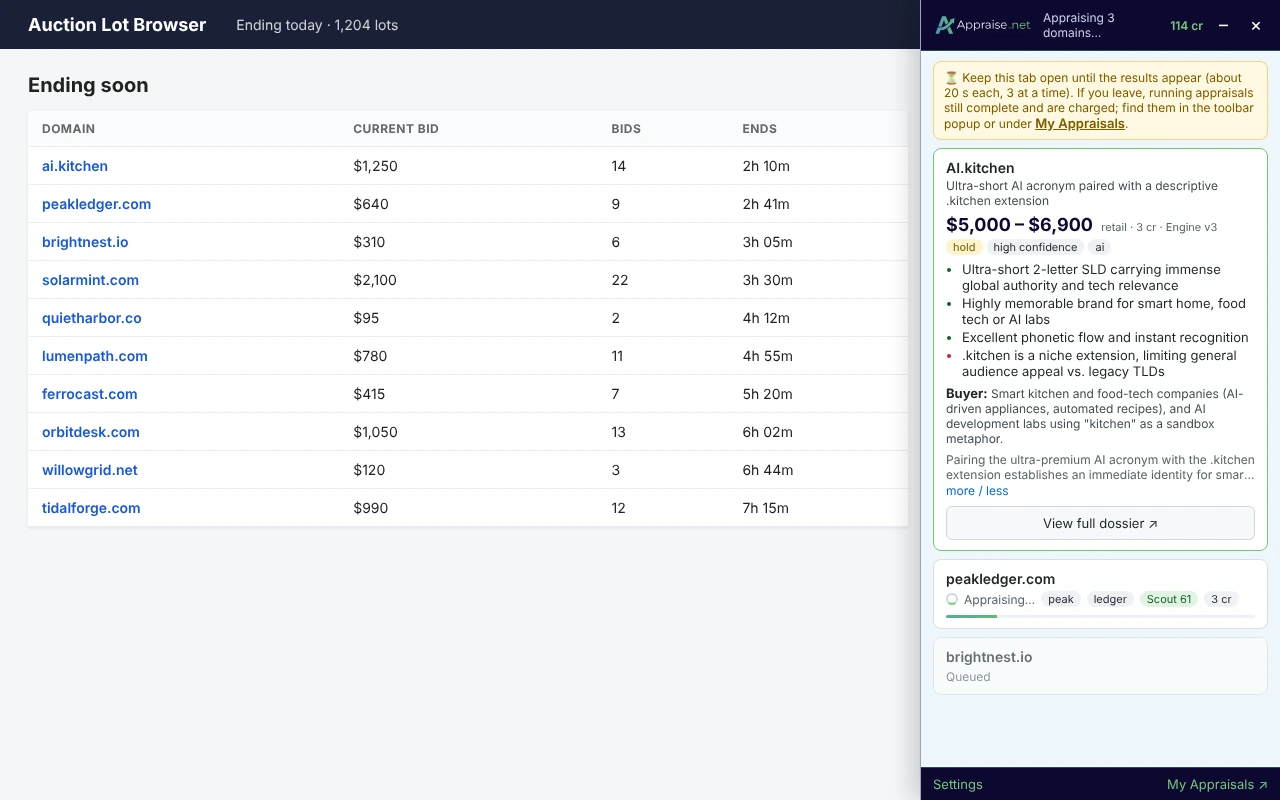
Each domain gets a card. Within a second you see the word split, the cached Scout score and the cost; the full appraisal follows in about 20 seconds.

Three live cards: one finished (full result), one in progress with the word-split chips, one queued; the amber "keep this tab open" banner at the top

Keep the tab open until the results appear. If you navigate away, appraisals already running still complete and are charged; find them in the toolbar popup or under My Appraisals.

Batch results

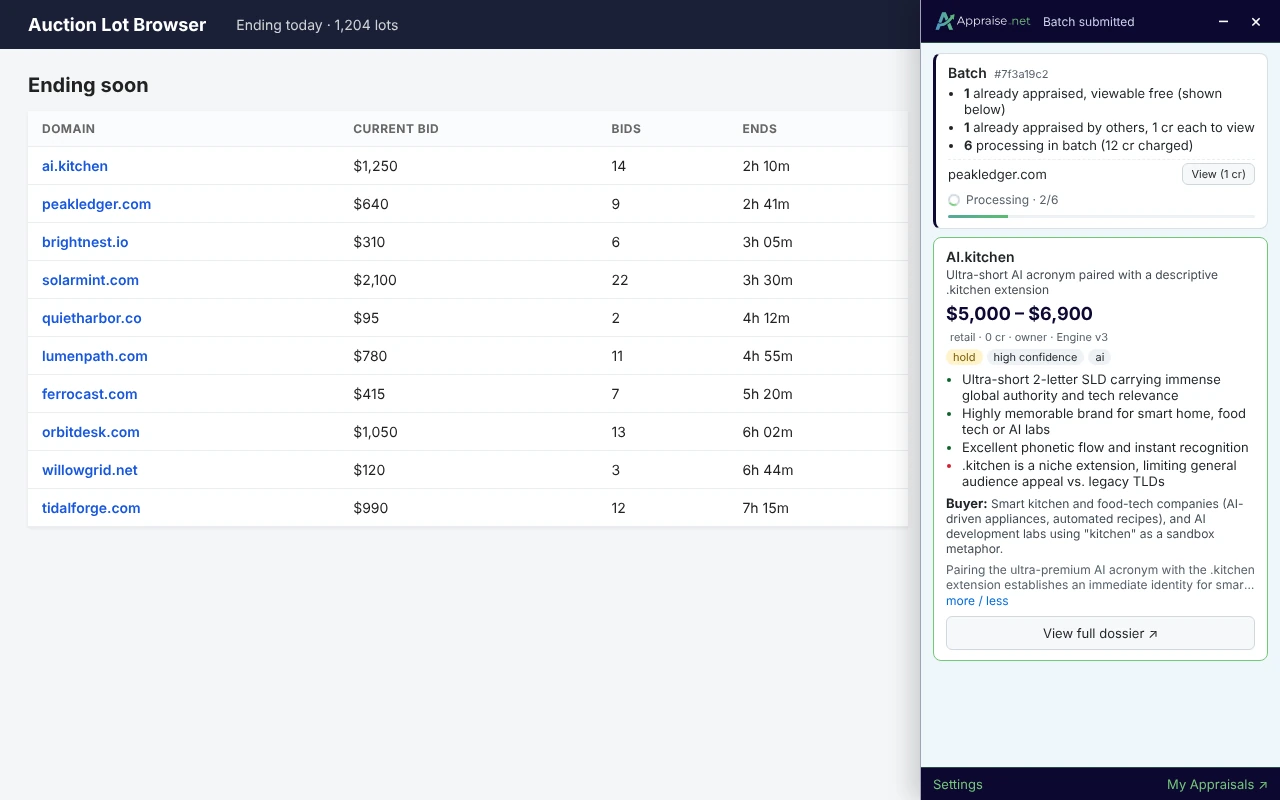
After you submit, the panel shows a summary: how many domains are already appraised and viewable free (shown right away), how many are viewable for 1 credit (with a View button each), and how many were sent for processing with the credits charged.

The batch card updates every 30 seconds (queued → processing 2/6 → done) and the result cards appear in place when it finishes. You also get a desktop notification (click it to open the results) and an email titled "Your Batch Appraisal is Complete!" with a link to the batch page. Finished batches are listed in the toolbar popup with a Show button, and on the site under Batches; the Show button and the notification both open that batch's own page.

The batch card with the three-line summary, a "View (1 cr)" row, the processing status, and a free cached result card below it

Related

6 views 0 helpful

What is on an extension result card?

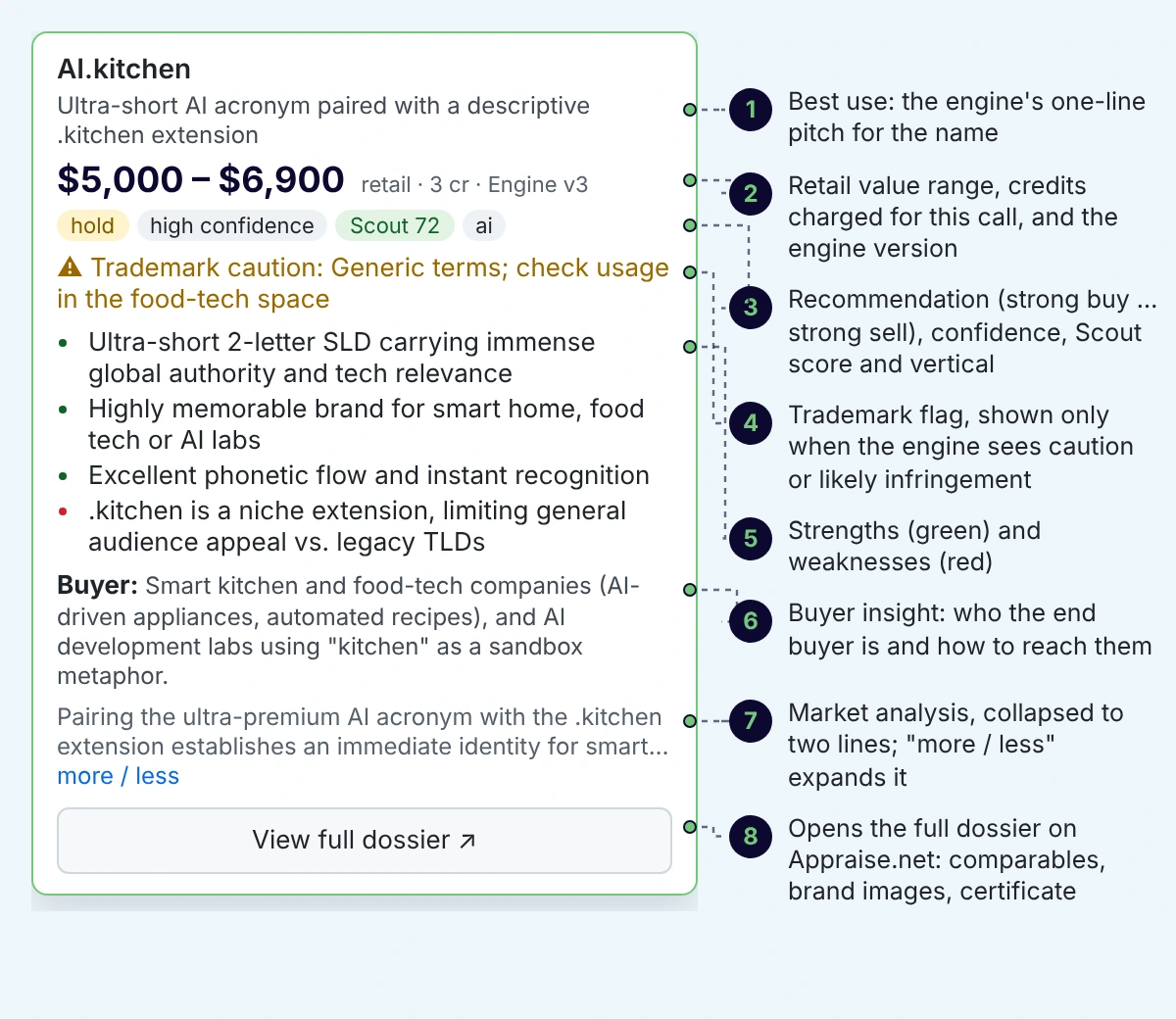
Every appraised domain gets a card in the side panel with the essentials of the full appraisal:

  • Retail value range, with the credits charged and the engine version (e.g. Engine v3)
  • Recommendation (strong buy to strong sell) and confidence
  • Best use (the engine's one-line pitch), vertical, Scout score
  • Trademark flag when the engine sees caution or likely infringement
  • Strengths (green) and weaknesses (red)
  • Buyer insight and a collapsible market analysis
  • View full dossier ↗: the complete appraisal on Appraise.net, with comparable sales, brand images and the certificate
One result card with callouts pointing to each element above; optional

To see what the full dossier behind a card looks like, see an example appraisal.

Related

6 views 0 helpful

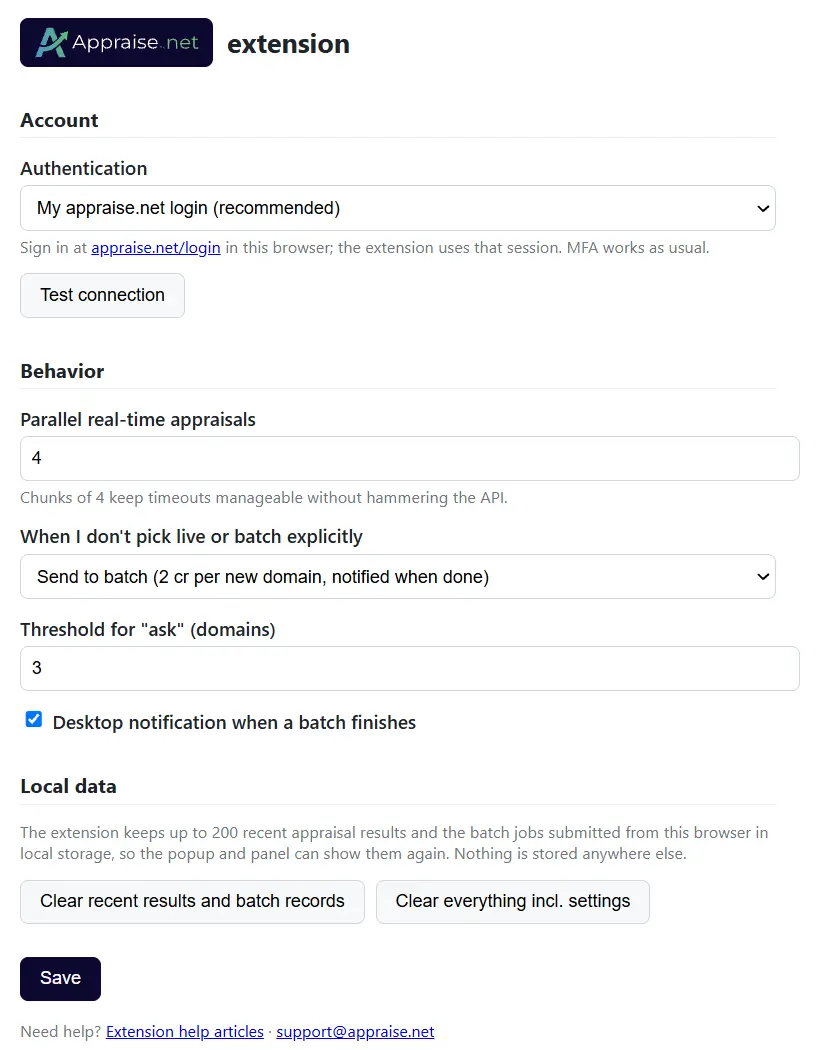
What settings does the extension have?

Open the settings from the toolbar icon → gear icon (⚙), or from the Settings link at the bottom of the panel.

SettingWhat it does
AuthenticationYour appraise.net login (default) or an API key
Test connectionConfirms the sign-in and shows plan and credits
Parallel real-time appraisalsHow many live appraisals run at once (default 4)
When I don't pick live or batch explicitlyBatch (default), Live, or Ask above a threshold
Desktop notification when a batch finishesOn by default
Local dataTwo buttons: Clear recent results and batch records removes the results and batch jobs the extension keeps in your browser; Clear everything incl. settings also resets the settings above to their defaults. Both stop batch status checks and clear the toolbar badge. Nothing on your Appraise.net account is affected.
The settings page

For the API-key option, see How do I install the extension and sign in? For what the live and batch choices mean, see Live or batch: which should I pick and what does each cost?

6 views 0 helpful

Troubleshooting the extension

Most problems come down to the browser session, credits or the page the extension is running on. Here is what each message means and what to do.

"Sign in to Appraise.net to continue."

Your session expired or you signed out. Sign in at appraise.net/login in this browser, then run the appraisal again.

"Not enough credits."

The panel shows what you have and what the request needs, with a Buy credits link. Nothing is charged for a request that can't be fulfilled. See how to buy additional credits.

"Your plan can't spend credits."

The account has no active plan or the subscription is suspended; the Fix plan link takes you to your profile.

The panel doesn't open on a page

The extension can't run on browser pages such as chrome:// or the Web Store, on PDFs, or inside some iframes. Try a normal web page. If a site blocks it, use the toolbar popup instead.

A domain I can see isn't in the extract list

The extractor only takes text that is rendered on the page. Domains drawn as images, inside embedded frames, or revealed only on hover are missed; highlight them and use the right-click menu instead. If a visible domain is consistently missed, send the page URL to support@appraise.net.

Batch finished but the panel didn't update

Open the toolbar popup and click Refresh, then Show next to the batch. The results are also under My Appraisals.

Rate limited

We allow 20 new real-time appraisals per minute per account; the panel tells you when to retry. For longer lists, batch mode has no such limit. See Live or batch: which should I pick and what does each cost?

6 views 0 helpful

What does the extension read and send?

Privacy

The extension runs only on the tab where you invoke it. It reads the page only when you ask it to extract domains, sends only the domains you chose to appraise.net, and talks to no other server. The full policy is at appraise.net/extension/privacy. For how we handle your data on the site, see our Privacy & Data Policy help category.

Feedback

Ideas and bugs: appraise.net/help → Ideas / Bugs, or support@appraise.net.

4 views 0 helpful

We use cookies to enhance your experience and analyze our website traffic. Learn more